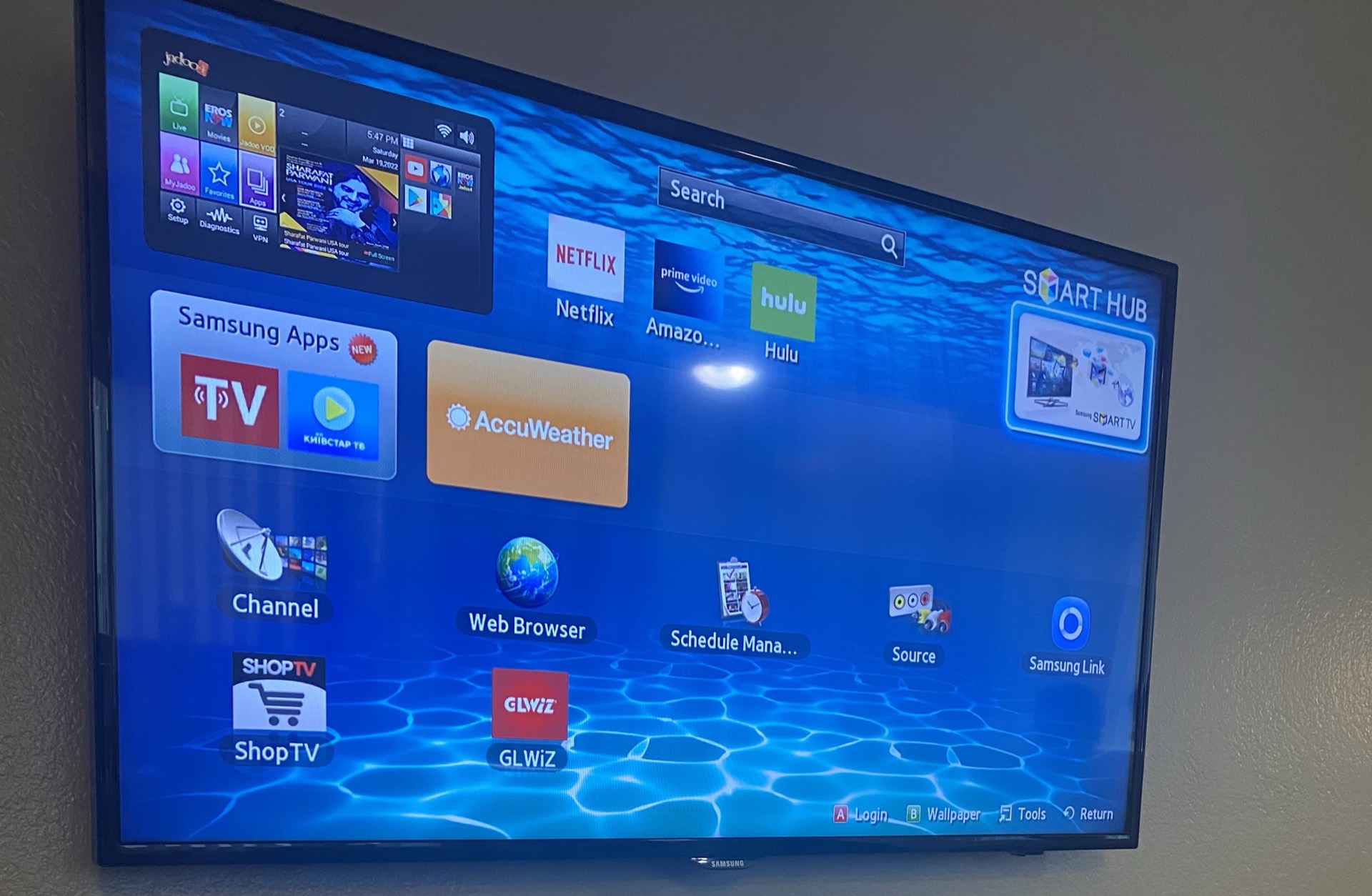
The place you are most likely to try this is the place least likely to work. Of the services below, Prime Video is the one that cannot do it from a television at all: the television apps do not expose the control, and the job has to be finished in a browser. Netflix does offer it on most televisions, but it is absent from some older apps, which reads as a broken feature rather than an old one.
Everywhere else it is a real control once you know where it lives. Disney+ behaves the same way on web, mobile and television. Apple TV+ takes a press and hold on the Up Next row. The other four keep it on the tile itself rather than in a settings screen.
The row is worth clearing properly rather than scrolling past. It fills with a film you gave twenty minutes, a series someone else started on your profile, and something you did finish that the app thinks you did not because you skipped the credits.
Netflix
In a browser
- Hover over the title in the Continue Watching row.
- Click the chevron at the bottom of the tile to open the detail panel.
- Choose Remove from Row.
On the mobile app
- Find the title in the Continue Watching row.
- Tap the three dots under the title.
- Choose Remove from Continue Watching.
On a television the option appears in the title's own menu on most devices, but it is missing on some older ones. If it is not there, doing it once from a browser or phone clears it everywhere, because the row belongs to the profile rather than to the device.
Removing an item does not clear it from your viewing history, which is a separate list in account settings.
Disney+
- Open the title's detail page. Acting on the tile itself will not offer the option.
- Select Remove from Continue Watching.
This works the same way on the web, mobile and television apps. Disney+ ties it to the profile, so it clears everywhere for that profile and leaves other profiles alone.
Prime Video
Prime Video is the awkward one. The tile usually offers nothing useful, and the control sits in a different part of the account.
- Open Prime Video on the web. The television apps do not expose this.
- Open your account and settings.
- Find the watch history area.
- Either remove the title, or mark it as watched.
Marking as watched is frequently faster. The row exists to track incomplete titles, so a completed one drops out by itself.
HBO Max, Hulu, Paramount+ and Peacock
All four put the control on the tile rather than in a settings screen.
- Press and hold the tile on mobile, or open the three dot menu on the web.
- Look for Remove, Hide, or Remove from Continue Watching.
These four change their interfaces often enough that a precise path published today may be wrong in six months. What holds is that the control belongs to the tile, so start there.
Apple TV+
Press and hold on the item in the Up Next row and choose Remove. Apple's Up Next is shared across the TV app rather than being specific to Apple TV+ content, so the same method clears items added from other sources.
When it comes back
Two causes account for most of it.
The removal was performed on a device that was not signed in to the profile you think it was, which happens most often on shared televisions with a default profile.
Or the title is genuinely being resumed by somebody else on the same profile. If several people share one profile, their viewing populates your row, and the fix is separate profiles rather than repeated deleting. Separate profiles also mean autoplay settings stop being fought over, since those are stored per profile too.
If your reason for clearing the row is that the artwork gives things away, that is a related but different problem, and there are some real controls for it. And if the row is full of things you downloaded and never watched, it is worth knowing when those downloads expire.



.jpg)