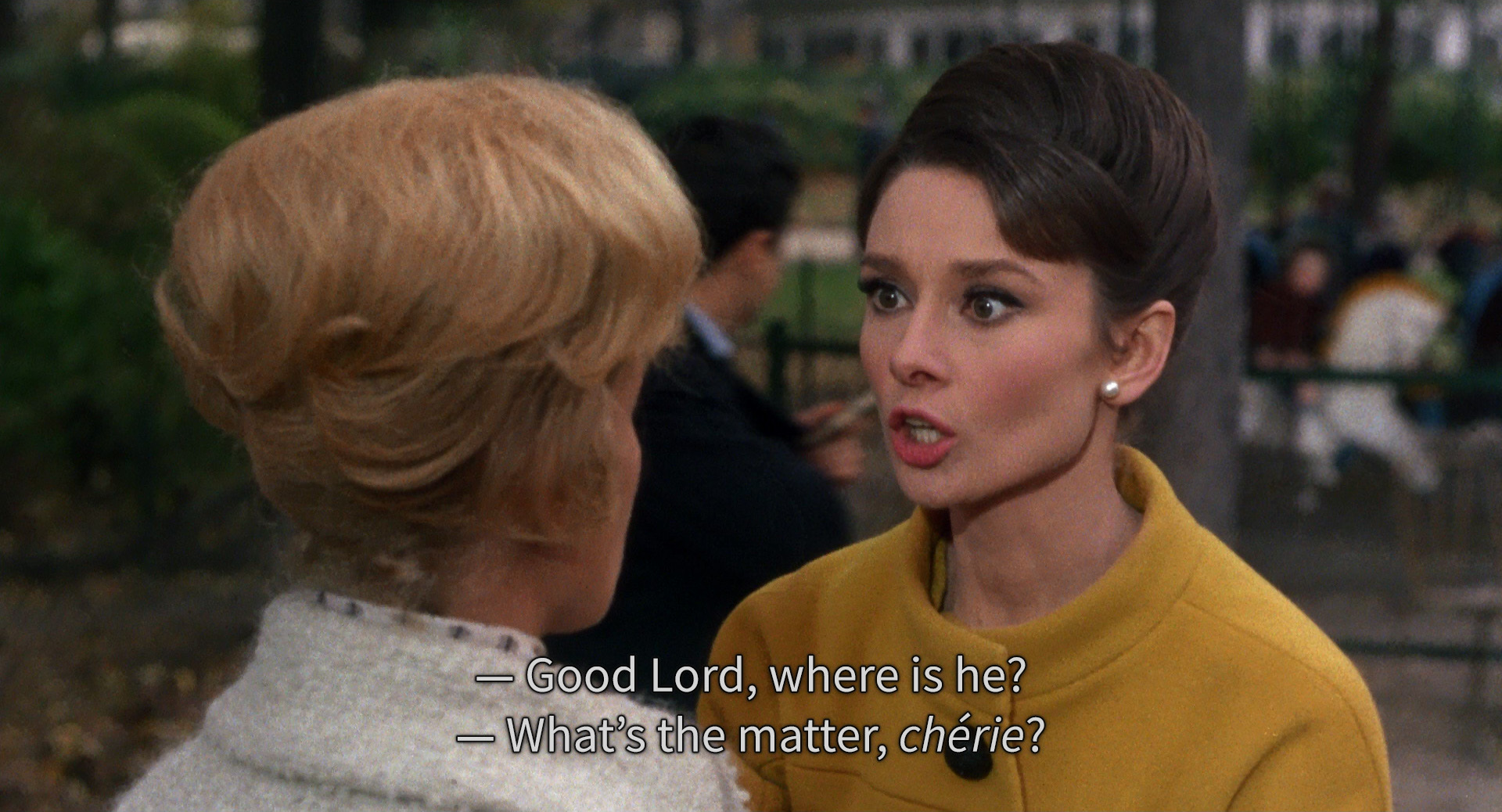
If the subtitles are too small to read from the sofa, the setting you want is not in the streaming app. On most platforms the size, colour and background of subtitles belong to the device, and the app renders whatever the system hands it. Set it once in the television or the phone's own accessibility menu and it applies to every app on that device.
That cuts both ways. Hunting through a service's settings for a font size control mostly turns up nothing, because on most platforms there is nothing there to find. It also means a single pass through one accessibility screen fixes the text everywhere at once, which is a better return than most streaming settings offer.
Appearance is only one of three complaints that get lumped together, though. The other two are captions announcing sound effects when all you wanted was the dialogue, and text that lags behind the picture. Those have different causes, and only one of them has a fix.
Size, colour and background are set by the device
This surprises people. On most platforms the appearance of subtitles is a system setting, and the streaming app simply renders whatever the system tells it to. Change it once and it applies across every app on that device.
Apple TV, iPhone and iPad
Apple documents this path in its own iPhone user guide, and the equivalent screen on an Apple TV box sits in the same place.
- Open Settings.
- Select Accessibility.
- Select Subtitles and Captioning.
- Select Style.
- Choose a preset, or select Edit Style to set your own font size, colour and background.
Android and Google TV
- Open Settings.
- Select Accessibility.
- Select Caption preferences.
- Turn captions on and adjust Caption size and style.
Roku
- Press Home, then open Settings.
- Select Accessibility.
- Select Caption style.
- Adjust Text size, Text colour and Background colour.
Fire TV
- Open Settings.
- Select Accessibility.
- Select Captions.
- Adjust text and background under Caption settings.
Samsung and LG televisions
Both keep this in the accessibility section of the main settings menu. Note that the built-in apps on both sometimes override the system style with their own control, so if a change has no effect inside one app, look for a caption setting in that app's own playback menu.
The single most useful change is not font size. Set a solid black background behind white text. White text has nothing behind it, so it disappears into any bright part of the picture no matter how large you make it. An opaque background removes that failure outright.
Netflix on the web is one of the exceptions that keeps its own appearance control in account settings, so if you watch mostly in a browser, look there rather than in the operating system.
Subtitles and closed captions are not the same thing
The language menu often lists something like English and then English CC, or English SDH. They are different tracks.
Subtitles carry the dialogue.
Closed captions, sometimes labelled SDH for deaf and hard of hearing, carry the dialogue plus descriptions of relevant sound, speaker identification and music cues.
If your subtitles keep announcing ominous music swells, you have selected a captions track. Switch to the plain subtitle option if the service offers one. Some titles only carry captions, in which case there is nothing to switch to.
There is also a distinct case where a film includes forced subtitles for the passages spoken in another language. Those are part of the presentation and appear whether or not you turned subtitles on.
Timing is usually not fixable, and the reason matters
If subtitles drift out of sync, first check whether the picture and audio are in sync with each other. If the audio is also off, the problem is the whole stream and not the text, and restarting the app or the device resolves most cases.
If audio and picture are fine and only the text is late, the subtitle file itself is at fault. Streaming apps generally offer no offset control, unlike a media player, so there is no adjustment available. Switching to a different subtitle track for the same language, where one exists, sometimes lands on a correctly timed file.
Subtitles burned into the video cannot be turned off, moved or restyled, because they are part of the picture.
Setting a default so you stop doing this every time
Most services let you set a preferred subtitle language per profile, and will then apply it to anything that offers that track. It is per profile rather than per account, which is the same pattern that governs autoplay and preview settings, and the same reason a change made on one profile appears not to have saved when someone else watches.
If several people share one profile and keep changing each other's settings, separate profiles fix it permanently, and they also stop everyone's viewing piling into one shared Continue Watching row. And if the reason you turned subtitles on is that quiet dialogue is followed by deafening effects, that is an audio configuration issue worth checking against how the surround path is actually set up.



.jpg)